Numark Mixtrack (Pro) 3
The Numark Mixtrack 3 and Numark Mixtrack Pro 3 are the same controller except that the Pro version has an integrated 4 channel output sound card and costs $50 more. If you use the non-Pro version, you would need a splitter cable or separate audio interface to be able to preview tracks in headphones.
The microphone input on the Pro version is not available to the computer through the controller’s sound card. It is mixed with the main output in hardware, so this controller’s sound card is not suitable for broadcasting or recording the inputs. If you want to use the controller for broadcasting or recording, getting the non-Pro version with a separate audio interface with a microphone input is suggested.
Nové ve verzi 2.1.
Mapping Description
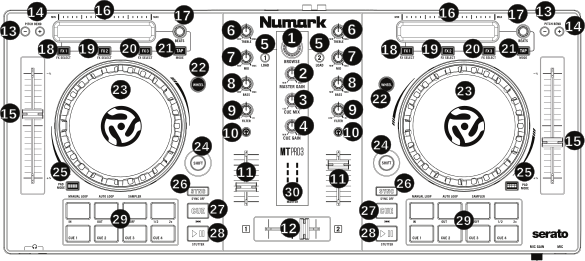
Numark Mixtrack (Pro) 3 (schematic view)
1. Browser Knob
Configurable option: In Focus mode the Browse encoder affects the library widget which currently has keyboard focus. This requires the Mixxx window to have focus and allows to control the searchbar, too. In Classic mode the Browse encoder can select items in the sidebar and tracks table only, but independent of keyboard focus.
2. Master Gain
3. Cue Mix
Adjusts the software’s audio output to the headphones, mixing between the cue (PFL) output and the main mix output.
4. Cue Gain
Adjusts the volume for headphone cueing in the software.
5. Load
Configurable option: If the smartPFL option is set to true, the Cue/PFL button is automatically activated on the deck being loaded and deactivated on the other deck.
6. High EQ Knobs
7. Mid EQ Knobs
8 Low EQ Knobs
9. Filter
Configurable option: Adjust FX parameter 4 (default) or deck gain when unfocused.
10. Cue/PFL/Headphones
11. Volume fader
Adjusts the volume of the deck
12. Crossfader
Controls the blend between the two decks
13-14. Pitch Bend Down/Up
15. Pitch Fader
Adjust the speed of the music (activate keylock to adjust tempo without affecting pitch). Note that moving the fader down increases speed, as marked by the “+” at the bottom of the fader on the controller. This can be reversed in Mixxx’s preferences under Interface > Speed slider direction
16. Touch Strip
17. Beats Multiplier
18. FX 1 On/Off
19. FX 2 On/Off
20. FX 3 On/Off
21. Tap BPM
23. Platter/Jog Wheel
Configurable Options: The iCutEnabled and fastSeekEnabled options can be used to turn off iCut and fast seeking. These options may be helpful to avoid accidentally using these features when touching the platter with shift lock on. The PitchBendOnWheelOff option allows pitch bending using the jog wheel even when the scratch mode is disabled.
24. Shift
25. Pad Mode
This is used to change the operation mode of the top 4 performance pads. Pressing this button will light the pad indicating the currently active mode (Manual Loop, Auto Loop or Sampler).
26. Sync
Configuration Options: The noPlayOnSyncDoublePress option can be used to turn off Play on Sync Double Press.
27. Cue (Transport Control)
28. Play/Pause
29. Performance Pads
The top row of pads is for controlling loops and samples. To select a mode, hold down the Pad Mode button and press one of the upper pads. An LED under the pad section indicates the currently selected mode. See the subsections below for details about each mode.
Manual Loop Mode
Hold PADMODE and press the pad marked Manual Loop (silkscreened above the pad) to assign the lower 4 pads to the functions listed below:
Loop In – Sets the beginning of a loop: When assigned, the Pad LED will light blue
Loop Out – Sets the end point for the loop: When assigned, the Pad LED will light blue
On/Off – (De)activate the loop. If a loop has not been set, this button will have no effect.: When assigned, the Pad LED will light blue
Loop x1/2 – Halve the length of the loop. Press SHIFT + Loop x1/2 to double the length of the loop. x1/2 button is disabled unless the corresponding deck is set to be quantized
Auto Loop Mode
Auto 1 – Sets and starts playback of a 2-beat autoloop.
Auto 2 – Sets and starts playback of a 4-beat autoloop.
Auto 3 – Sets and starts playback of a 8-beat autoloop.
Auto 4 – Sets and starts playback of a 16-beat autoloop.
SHIFT + Auto 1 – Sets and starts playback of a 1/8-beat autoloop.
SHIFT + Auto 2 – Sets and starts playback of a 1/4-beat autoloop.
SHIFT + Auto 3 – Sets and starts playback of a 1/2-beat autoloop.
SHIFT + Auto 4 – Sets and starts playback of a 1-beat autoloop.
If the pad is held down more than .5 second (Long Press), the Autoloop will be disabled once pad is released. On Short Press, the pad will behave as a normal button (ON on first press, OFF on second press)
Sample Mode
Deck 1 - Sample 1 – Plays the sample assigned to Sample Pad 1 with the unit Sync activated.
Deck 1 - Sample 2 – Plays the sample assigned to Sample Pad 2 with the unit Sync activated.
Deck 1 - Sample 3 – Plays the sample assigned to Sample Pad 3 with the unit Sync activated.
Deck 1 - Sample 4 – Plays the sample assigned to Sample Pad 4 with the unit Sync activated.
Deck 2 - Sample 1 – Plays the sample assigned to Sample Pad 5 with the unit Sync activated.
Deck 2 - Sample 2 – Plays the sample assigned to Sample Pad 6 with the unit Sync activated.
Deck 2 - Sample 3 – Plays the sample assigned to Sample Pad 7 with the unit Sync activated.
Deck 2 - Sample 4 – Plays the sample assigned to Sample Pad 8 with the unit Sync activated.
If the pad is held down more than .5 second (Long Press), the sampler will be disabled once pad is released. On Short Press, the pad will behave as a normal button (ON on first press, OFF on second press)
Load sample by selecting track and pressing Sample X
Pressing sample button when sample is already playing goes back to cue and plays
Shift + sample to stop sample
Eject sample by TAP + Sample X