6. Example Setups
This chapter presents some example hardware setups with instructions for how to configure Mixxx to work with them.
Vegeu també
Maquinari DJ: background information about different types of equipment.
Configuring sound input and output: details about each available input and output option.
Utilitzant micròfons: details for configuring Mixxx to work with microphones.
DJ Hardware Guide lists specific devices with information about their prices, features, and compatibility with Mixxx.
6.1. Computer Only
The built-in audio interface on most computers comes with a single stereo line-out and a microphone input. This can be set up with Mixxx in two ways:
Practicing Mixing / Broadcasting
This setup can be used with a single audio output for speakers or headphones to practice DJing without investing in any equipment other than a computer and a set of speakers or headphones. With this configuration, use the Pre/Main Knob to switch back and forth between the main mix and PFL signal. This setup cannot be used to play for a live audience because the main mix is not sent to an audio interface output. However, it can be used by radio DJs who only need to send the main mix to a broadcast audience.
Open
Select the Output tab
From the Headphones drop-down menu, select your built-in audio interface, then Channels 1-2. Although this is labeled Headphones, you can also plug speakers into the output jack of your computer.
Depending on your audio interface, you can specify a microphone
Utilitzeu el vostre micròfon integrat o connecteu un micròfon al vostre ordinador
Check that your microphone is detected by your OS
Open the Input tab
From the Microphone drop-down menu, select the input your microphone is connected to
Click Apply to save the changes.
Playing for an Audience
This setup allows for playing to an audience without headphone cueing.
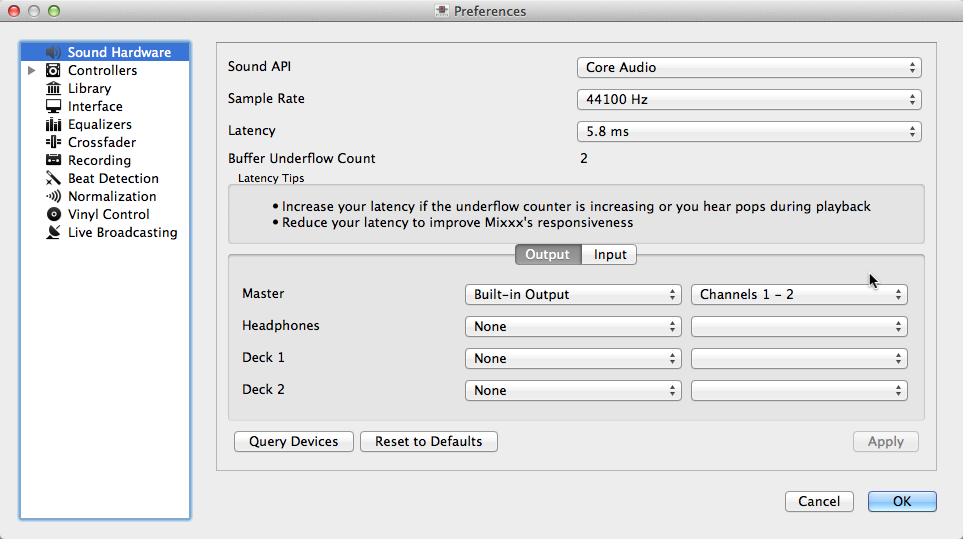
Utilitzant el Mixxx amb la targeta de so integrada
Open
Select the Output tab
From the Main drop-down menu, select your built-in audio interface, then Channels 1-2
Depending on your audio interface, you can specify a microphone
Utilitzeu el vostre micròfon integrat o connecteu un micròfon al vostre ordinador
Check that your microphone is detected by your OS
Open the Input tab
From the Microphone drop-down menu, select the input your microphone is connected to
Click Apply to save the changes.
6.2. Portàtil i cable divisor
The cheapest way to DJ and cue with headphones uses a stereo-to-mono DJ splitter cable (also known as a “Y cable”) plugged into the headphone jack of a laptop or other computer. This cable divides the stereo output from a single jack into two separate mono signals.
This setup allows you to start DJing without having to invest in expensive equipment. However, because the signals are in mono, you and your audience will not be able to enjoy music producers” positioning of sound in space (although many club PA systems are wired in mono anyway). Furthermore, audio interfaces built into computers are usually low quality and often pick up interference from other components of the computer.
Using a built-in audio interface and a stereo-to-mono splitter
Open
Select the Output tab
Comproveu que heu connectat els auriculars a l’extrem que té el símbol d’auriculars i els altaveus a l’extrem que té el símbol d’un altaveu.
From the Main drop-down menu, select your built-in audio interface, then Channel 1
From the Headphones drop-down menu, select your built-in audio interface, then Channel 2
Click Apply to save the changes.
Avís
Molts cables divisors, especialment si s’anuncien com a divisors per a auriculars, envien el mateix senyal als dos connectors, de manera que no serveixen per a aquesta configuració. D’altres divisors genèrics d’estèreo a mono separen els canals, però tan sols se sent un canal i no tots dos. Els cables divisors per a DJ, separen l’estèreo i envien el mateix senyal mono a tots dos canals dels auriculars o altaveus.
6.3. Laptop and External USB Audio Interface
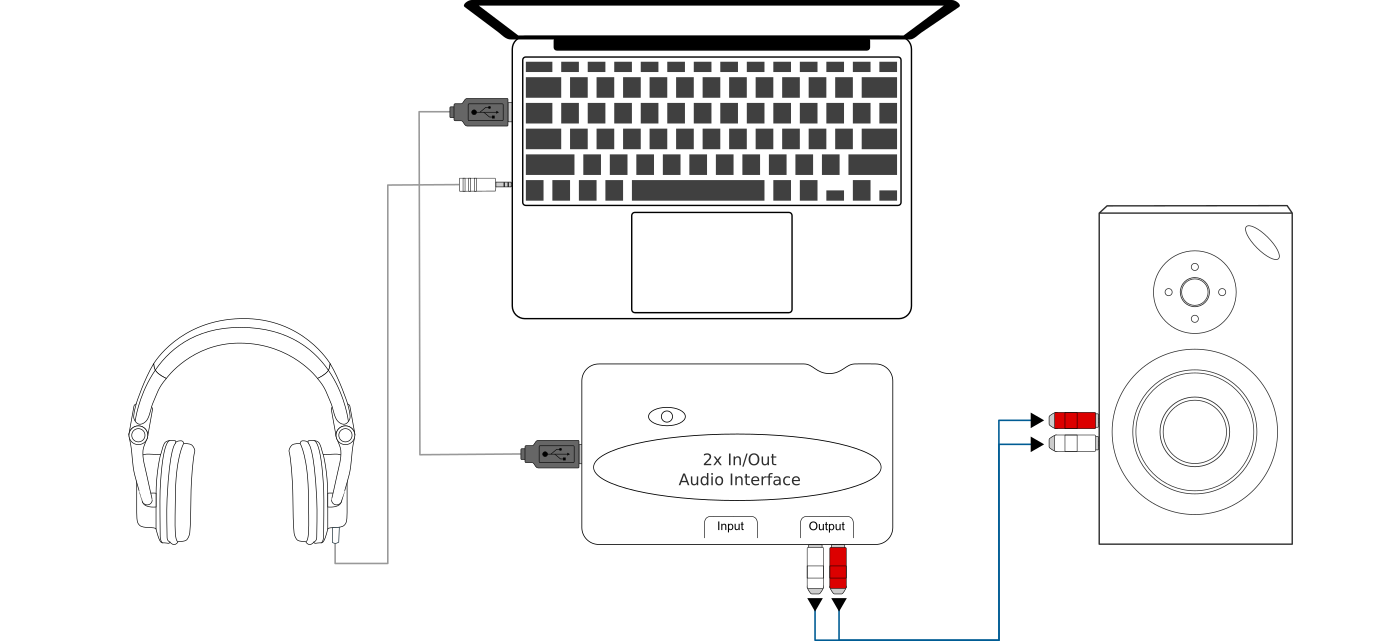
Using Mixxx together with an external audio interface
Using two audio interfaces (built-in + external)
Open
Select the Output tab
From the Main drop-down menu, select the external audio interface, then Channels 1-2
From the Headphones drop-down menu, select the built-in audio interface, then Channels 1-2
Using an external multi-channel audio interface
Open
Select the Output tab
From the Main drop-down menu, select the external audio interface, then Channels 1-2
From the Headphones drop-down menu, select the external audio interface, then Channels 3-4
Click Apply to save the changes.
6.4. Portàtil amb un controlador HID o MIDI
Vegeu també
The Controladors section of the Maquinari DJ chapter has background information about controllers
Controllers with an integrated audio interface
Many DJ controllers include an integrated multi-channel audio interface. A setup with this kind of controller may look like the diagram below:
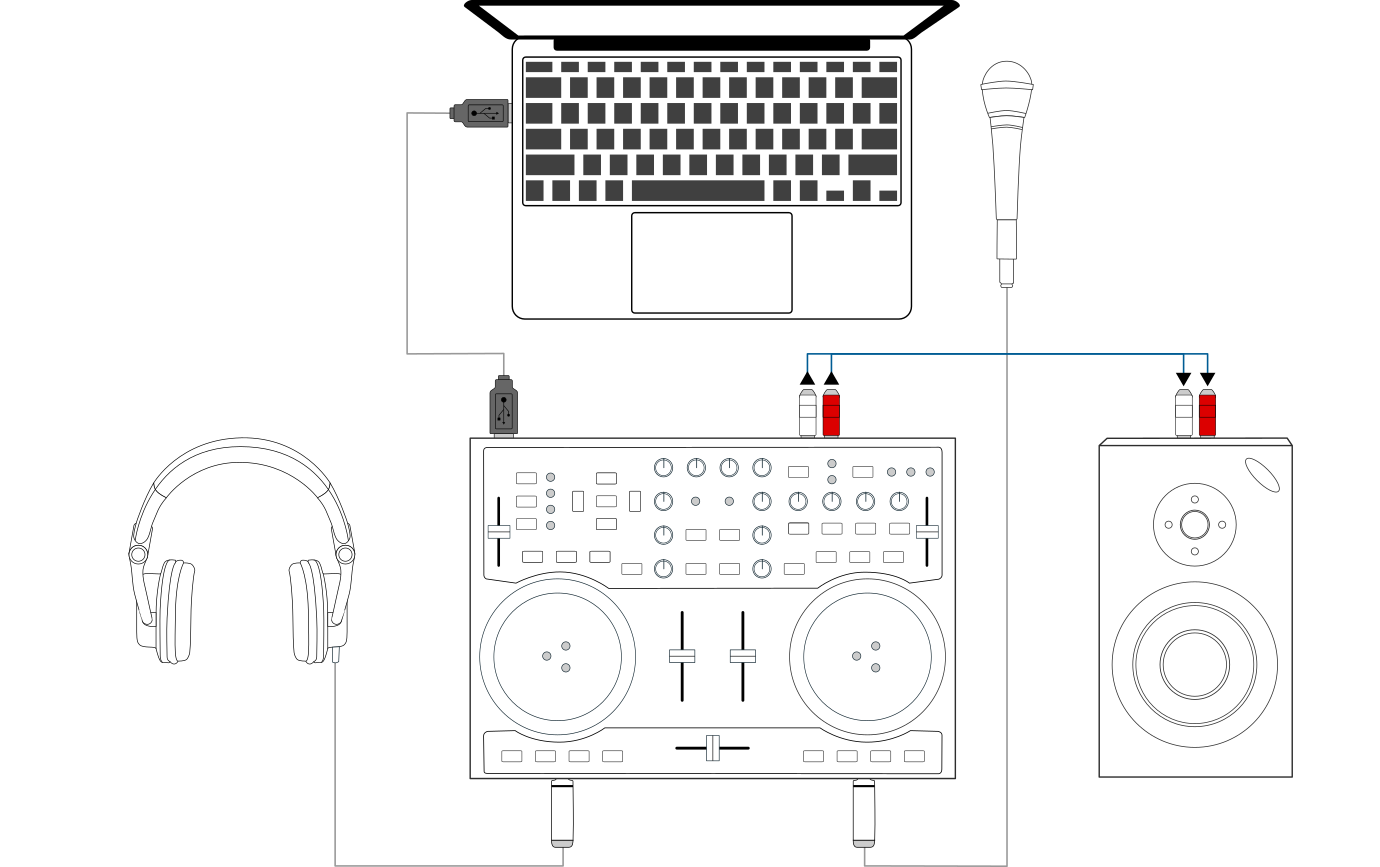
Using Mixxx together with a DJ controller and integrated audio interface
Using a controller with an integrated multi-channel audio interface
Open
Select the Output tab
From the Main drop-down menu, select your controller’s audio interface, then Channels 1-2
From the Headphones drop-down menu, select your controller’s audio interface, then Channels 3-4
Click Apply to save the changes.
Controllers without an integrated audio interface
Controllers without an integrated audio interface can be used together with a USB audio interface as depicted in the diagram below:
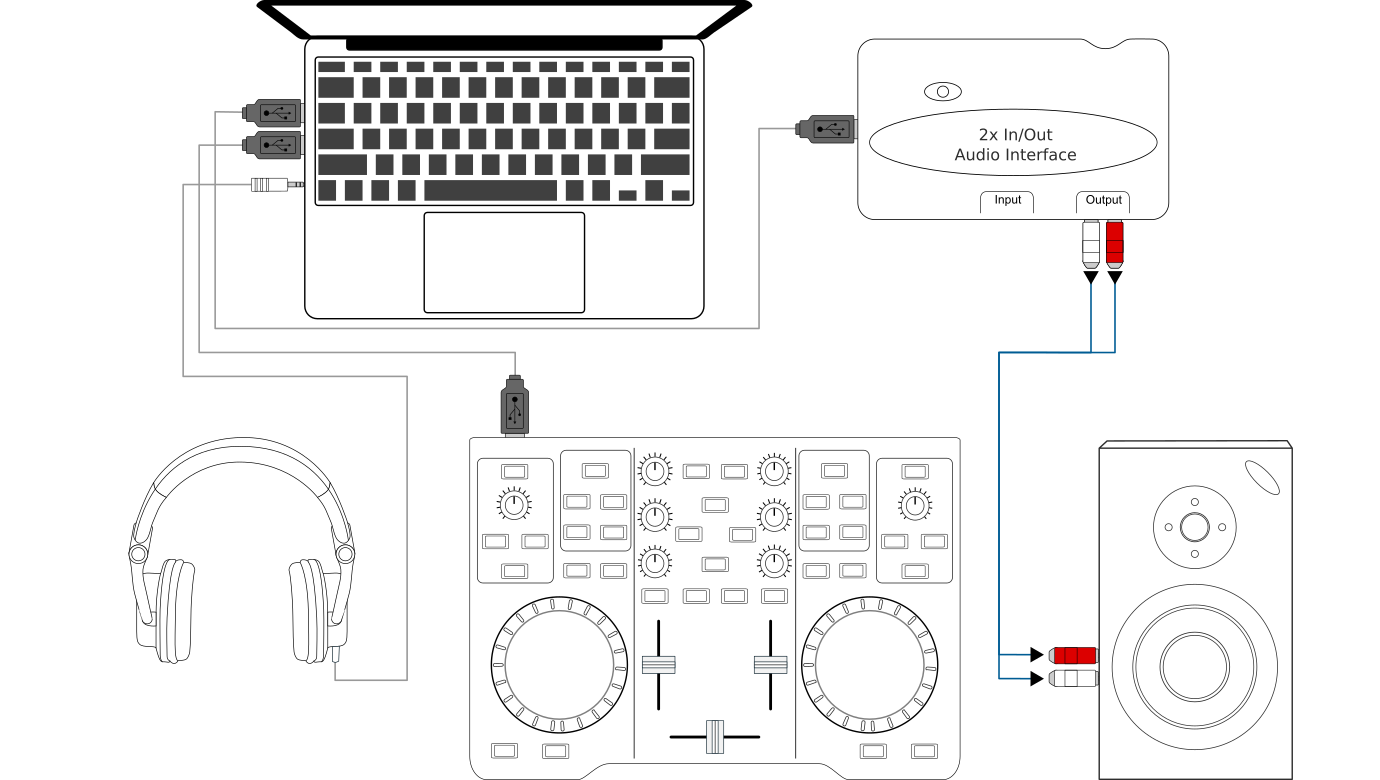
Using Mixxx together with a DJ controller and external audio interface
Using a controller without an integrated audio interface
Open
Select the Output tab
From the Main drop-down menu, select the external audio interface, then Channels 1-2
From the Headphones drop-down menu, select the built-in audio interface, then Channels 1-2
Click Apply to save the changes.
6.5. Portàtil, mesclador extern i control amb vinil
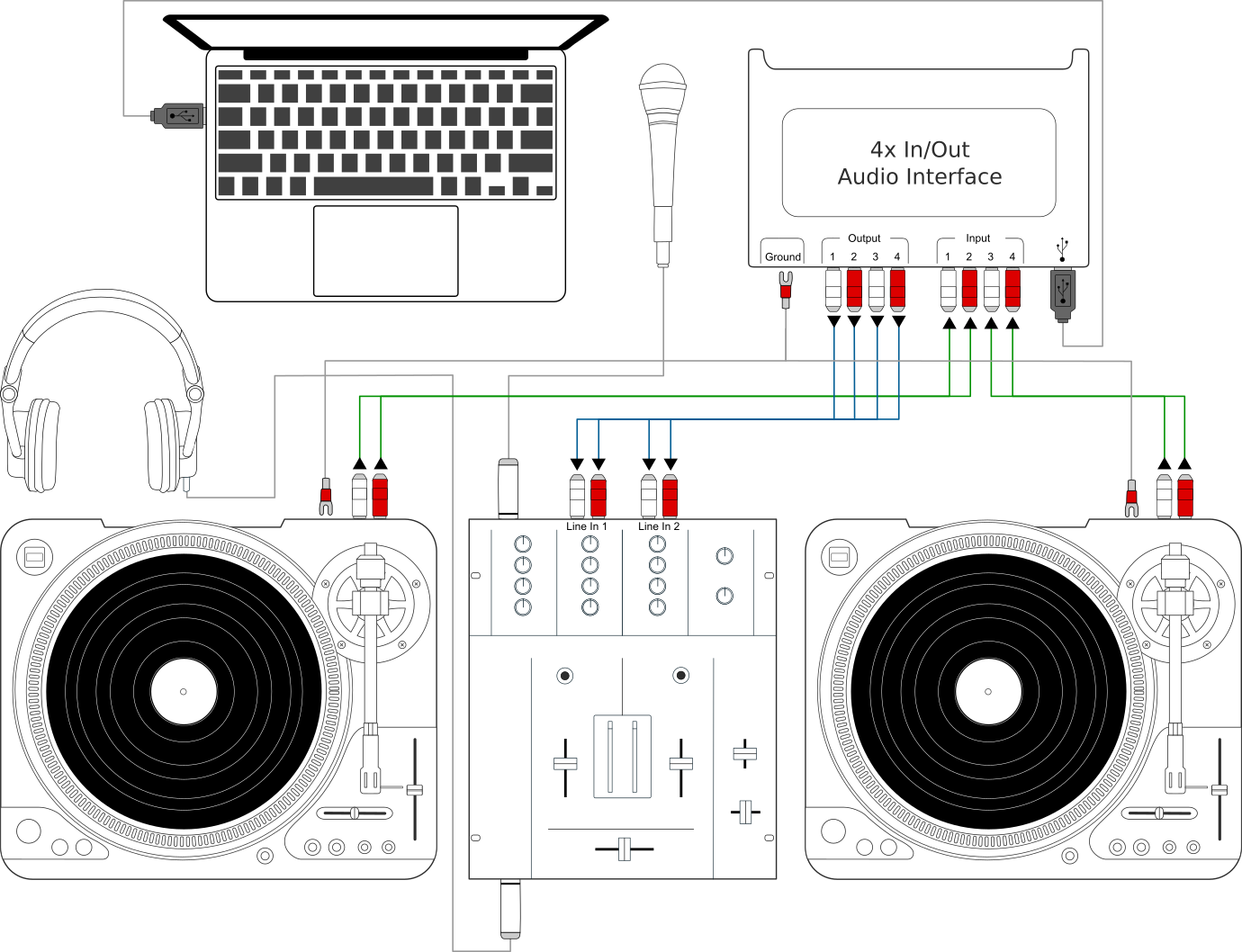
Ús del Mixxx amb tocadiscos i mesclador extern
This setup allows DJs to use the techniques of DJing with vinyl record turntables combined with the portability and flexibility of a laptop computer. Instead of carrying crates of records or CDs, DJs can carry their entire music collection on their laptop. In addition to a laptop and headphones, this setup requires an audio interface with at least two pairs of stereo inputs and outputs as well as a pair of timecode records.
Vegeu també
Go to the chapter Vinyl Control / DVS for detailed information.