Native Instruments Traktor MX2
The MX2 is a two-channel controller with an integrated sound card. It has two integrated stereo outputs (line and 1/8” / 3.5 mm TRS), headphone outputs (1/8” / 3.5 mm TRS) and microphone inputs (1/4” / 6.3 mm TRS). The MX2 uses the standard HID protocol to send and receive signals from a computer, so it can work with Mixxx.
2.6.0 sürümünde geldi.
Mixxx Sound Hardware Preferences
Main output: channels 1-2
Headphone output: channels 3-4
Mixxx mapping
The Mixxx mapping tries to be as close as possible to NI’s original mappings which you can find here: In section 4 of their manual
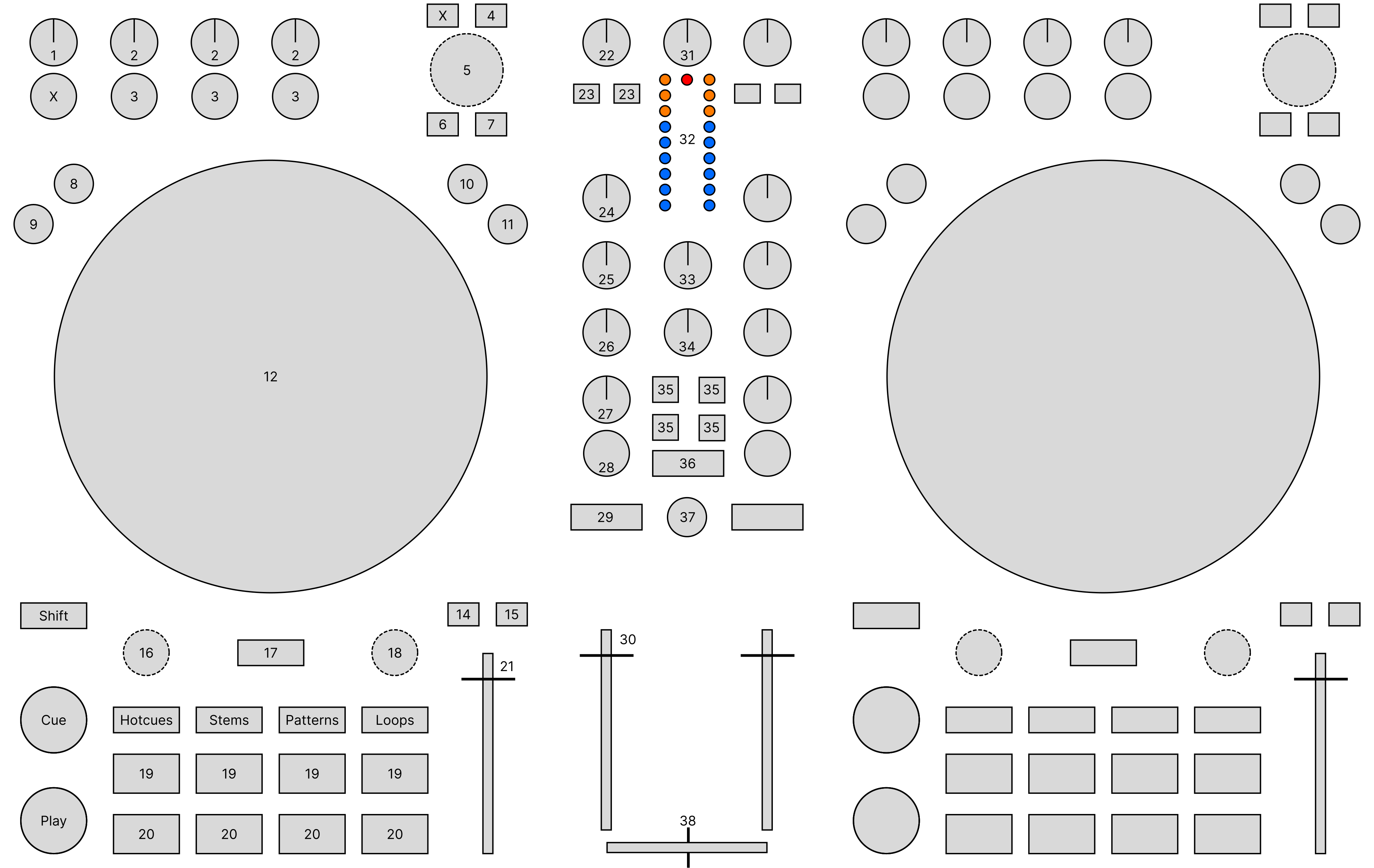
Native Instruments Traktor MX2 (schematic view)
Channel Controls (1-30)
Element |
Primary function |
Secondary function (+ SHIFT) |
|---|---|---|
1. FX Main knob |
Control the ‘Dry/Wet’ Parameter of FX1 / FX2 |
|
2. FX Param knob |
Control the ‘meta’ Parameter of Effect 1-3 in FX1 / FX2 |
|
3. FX Toggle button |
Toggles Effect 1-3 in FX1 / FX2 |
Cycle through effects |
4. Preparation button |
Add selected track to AutoDJ queue (bottom) |
Add selected track to AutoDJ queue (top) |
5. Browse knob turn |
Scroll in Tracks table |
Scroll in tree view |
5. Browse knob press |
Load selected track into deck |
Go to tracks table of currently hovered item |
6. Preview button |
Load selected track into preview deck / play, pause if already loaded Buttons are linked -> preview on channel 1 & 2 control the same preview deck |
|
7. List view button |
Toggles maximizing the library |
|
8. FLX button |
Enable and disable slip mode |
|
9. REV button |
Reverse play while held |
Reverse play + slip mode while held |
10. Turntable button |
Set jog wheel mode to ‘turntable’ |
|
11. Jog button |
Set jog wheel mode to ‘jog’ |
|
12. Jog wheels |
‘turntable’ mode: Control scratching when touched from the top (Temporarily bend the pitch when touched from the side) ‘jog’ mode: Temporarily bend the pitch |
|
Shift button |
Activates secondary functions when pressed |
|
14. Sync button |
Syncs the BPM and phase (depending on quantize). Press longer to activate sync lock on that deck. |
Syncs the phase to that of the other track |
15. Sync master button |
Set the deck as sync leader |
|
16. Move knob turn |
Beatjump backwards/forwards While Stems is active and 20 is held: see ‘Stems mode’ |
Halve or double beatjump size |
Stems mode |
Control volume of stem |
|
16. Move knob press |
Activates a rolling loop of the defined number of beats. Once disabled, playback will resume where the track would have been if it had not entered the loop |
Activate current loop, jump to its loop in point, and stop playback |
17. Keylock button |
Enable keylock for the deck. Toggle loop knob 18 to pitch mode while being held |
|
18. Loop knob turn |
Halve or double loop size while Stems is active and 20 is held: see ‘Stems mode’ |
|
Stems mode |
Control the ‘meta’ parameter of the stem effect |
Cycle through effects |
Pitch mode |
Change pitch of the track |
|
18. Loop knob press |
Set a loop of the defined number of beats and enables the loop |
Toggles the current loop on or off |
CUE button |
CUE default |
If the CUE point is set, jump to it and stops |
Play button |
Toggles playing |
Seeks a player to the start and then stops it |
Hotcues button |
Activate hotcue mode (for the number buttons) |
|
Stems button |
Activate stems mode (for the number buttons) |
|
Patterns button |
Activate patterns mode (for the number buttons) –> currently not implemented |
|
Loops button |
Activate loops mode (for the number buttons) |
|
19. Number buttons 1-4 |
Function depends on current mode |
|
Hotcue mode |
If hotcue is set, seeks the player to hotcue position. Otherwise set hotcue at current position |
Clear the hotcue |
Stems mode |
Toggle mute stem 1-4 |
|
Loops mode |
Enable a rolling loop of 1/16, 1/8, 1/4, 1/2 beats while being held |
Enable default loop instead |
20. Number buttons 5-8 |
Function depends on current mode |
|
Hotcue mode |
like 19 |
like 19 |
Stems mode |
Toggle move and loop knob to stems mode while being held |
|
Loops mode |
Enable a rolling loop of 1, 2, 4, 8 beats while being held |
Enable a default loop instead |
21. Tempo fader |
Speed control |
|
22. Pre-Gain knob |
Adjusts the pre-fader gain of the deck |
|
23. FX select button |
Selects whether FX1 / FX2 should be applied to the deck |
|
24. HI knob |
High frequency filter |
|
25. MID knob |
Middle frequency filter |
|
26. LOW knob |
Low frequency filter |
|
27. GFX parameter knob |
Quick effect (35, 36) ‘meta’ parameter knob for the deck |
|
28. GFX toggle button |
Toggles whether GFX (35, 36) should be applied to the deck |
|
29. Headphone button |
Toggles headphone cueing |
|
30. Volume fader |
Adjusts the channel volume fader for the corresponding deck |
Mixer Controls (31-38)
Element |
Primary function |
Secondary function (+ SHIFT) |
|---|---|---|
31. Gain knob |
Unmapped (adjusts the hardware gain) |
|
32. VuMeter LEDs |
Show the current instantaneous deck volume |
|
33. Headphone mix knob |
Adjusts the cue/main mix in the headphone output |
|
34. Headphone gain knob |
Adjusts the headphone output gain |
|
35. Effect buttons (GFX) |
Load preset from the Quick Effect presets list on both decks. 8 first presets from the list can be selected.
Press the button once to get the first preset, press twice for the second preset.
Press once (Press twice):
1 (5) 2 (6)
3 (7) 4 (8)
|
Load preset on selected deck |
36 Filter effect button (GFX) |
Loads the ‘Filter’ effect preset |
|
37. Microphone button |
Toggles microphone talkover, long press for permanent activation |
|
38. Crossfader |
Adjusts the crossfader between both decks |