Numark Mixtrack Pro FX
Manufacturer’s product page · Manufacturer’s user manual · Forum thread
2.3.1 sürümünde geldi.
Overview
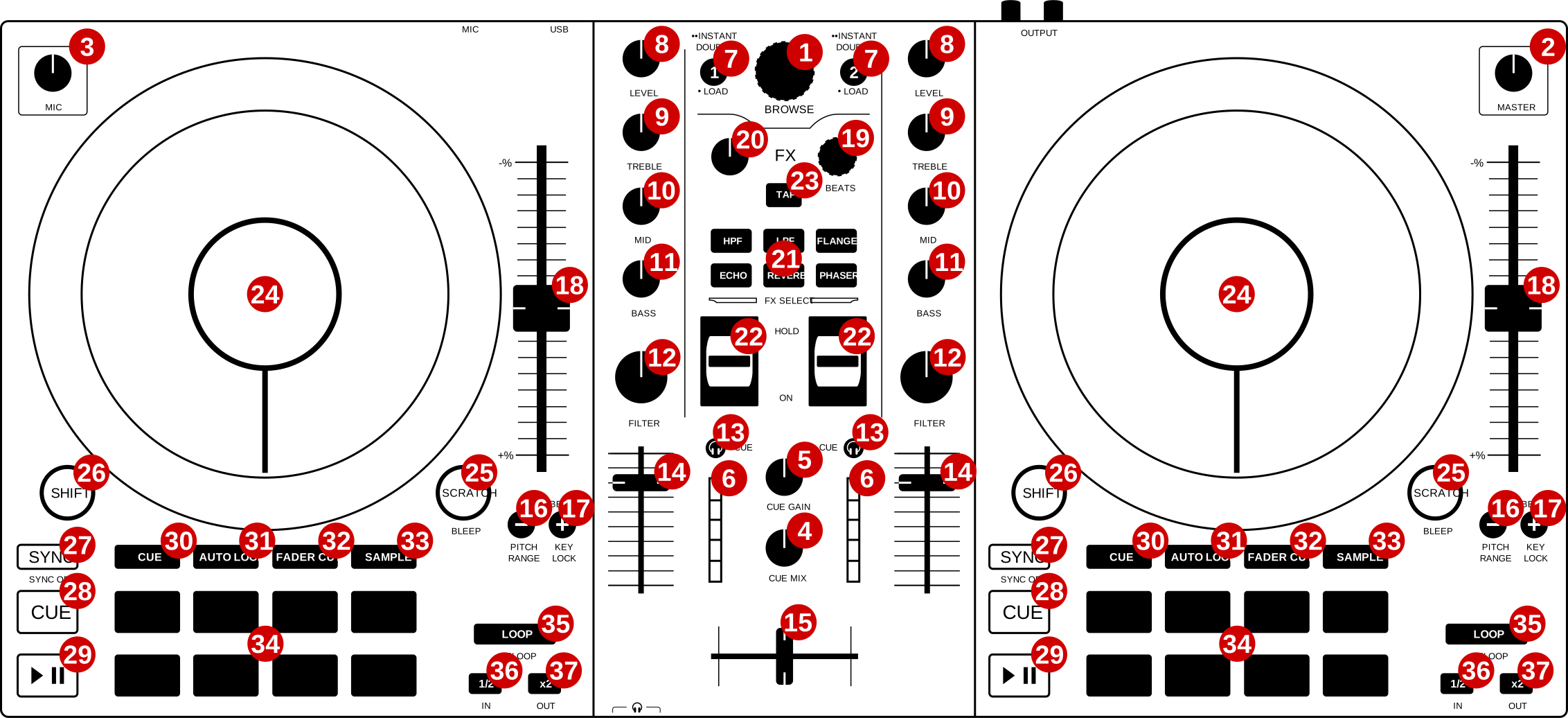
Numark Mixtrack Pro FX (schematic view)
See the tables below for controls descriptions.
Misc
# |
Name |
Function |
|---|---|---|
1 |
BROWSE (rotate) |
Browse library |
1 |
SHIFT + BROWSE (rotate) |
Zoom in/out waveform summary |
1 |
BROWSE (press) |
Switch between tree and track list |
1 |
SHIFT + BROWSE (press) |
Select item (collapse/extend tree branch or load track) |
2 |
MASTER |
Adjust the volume level of master output. Does not affect the microphone volume (adjusted separately with the MIC knob) |
3 |
MIC |
Adjust the volume level of microphone input. Note that the microphone input is mixed in hardware, so the corresponding GUI knob does not reflect the hardware knob state. |
4 |
CUE MIX |
Head/mix knob. Adjust the audio output to the headphones, mixing between the cue output and the main mix output |
5 |
CUE GAIN |
Adjust the headphone volume |
15 |
Crossfader |
Controls the mix between the two decks |
23 |
BPM |
Tap repeatedly to enter a new BPM on both decks |
Deck
Each of those controls exists in both decks and affects only the corresponding deck.
# |
Name |
Function |
|---|---|---|
6 |
Main level meter |
Displays the audio level going to the main output |
7 |
LOAD |
Load selected track |
7 |
·· INSTANT DOUBLES |
Load track from the opposite deck and seek to the same position. Deck cloning must be enabled in Mixxx settings (Settings -> Preferences -> Decks -> Double-press Load button to clone playing track). |
8 |
LEVEL |
Adjust the pre-fader, pre-EQ audio level |
9 |
TREBLE |
Adjust high frequencies |
10 |
MID |
Adjust middle frequencies |
11 |
BASS |
Adjust low frequencies |
12 |
FILTER |
Adjust the filter effect |
13 |
CUE |
Headphone button. Toggle sending channel to the cue (headphone) channel |
14 |
Channel fader |
Adjust volume level |
16 |
PITCH BEND - (hold) |
Temporarily reduce the speed of the track |
16 |
PITCH RANGE |
Change pitch range. Ranges are configurable in the script file, see Adjustable values section. |
17 |
PITCH BEND + (hold) |
Temporarily increase the speed of the track |
17 |
KEYLOCK |
Toggle key lock |
18 |
Pitch fader |
Adjust the speed of the track |
24 |
Jog wheel (top) |
If scratch mode is enabled (see the SCRATCH button below): scratch |
24 |
Jog wheel (edge) |
|
24 |
SHIFT + jog wheel |
Seek track |
25 |
SCRATCH |
Toggle scratch mode. Enabled by default. |
25 |
BLEEP |
Play the track in reverse, then release to continue playback from a point where the track would have been if it had not been reversed |
26 |
SHIFT |
Hold and then manipulate other controls to activate their secondary functions |
27 |
SYNC |
If sync lock is disabled: set BPM to the other deck’s BPM |
27 |
SYNC (hold, then release) |
Enable sync lock |
27 |
SYNC OFF |
Toggle quantization |
28 |
CUE |
If track is playing: stops the track and resets position to the main cue point |
28 |
CUE (hold) |
Play the track from main cue point, release to stop playback and return to the main cue point. Playback must be initially stopped on main cue point. |
28 |
SHIFT + CUE |
Stop the playback and return to the beginning of the track |
29 |
Play/Pause |
Play/pause playback |
29 |
SHIFT + Play/Pause |
Toggle reverse playback |
35 |
LOOP |
If loop is disabled: enable loop, starting at current position |
35 |
RELOOP |
If loop is enabled: jump to loop IN point and stop playback |
36 |
1/2 |
Decrease loop size by half |
36 |
IN |
Set the loop IN point |
37 |
x2 |
Double the loop size |
37 |
OUT |
Set the loop OUT point |
İpucu
The actual behavior of CUE and Play/Pause buttons depends on Mixxx settings. See The Mixxx User Interface for more info.
FX
# |
Name |
Function |
|---|---|---|
19 |
BEATS |
Adjust FX param 1 of Effect 1 on Effect Unit 1 and 2 |
19 |
SHIFT + BEATS |
Adjust FX param 2 of Effect 1 on Effect Unit 1 and 2 |
20 |
Dry/Wet knob |
Adjust the Dry/Wet rate of Effect Unit 1 and 2 |
21 |
FX select buttons |
See below |
22 |
FX toggle switches |
Toggle Effect 1 on Effect Unit corresponding to deck number |
FX select buttons have different functions than what is printed on them. Below is the original layout (not used), and two tables presenting button functions (and SHIFT + buttons functions).
HPF |
LPF |
FLANGER |
|---|---|---|
HPF |
LPF |
FLANGER |
ECHO |
REVERB |
PHASER |
Effect Unit 1 Effect 1 previous FX |
Adjust beatgrid on deck 1 |
Effect Unit 2 Effect 1 previous FX |
|---|---|---|
Effect Unit 1 Effect 1 previous FX |
Adjust beatgrid on deck 1 |
Effect Unit 2 Effect 1 previous FX |
Effect Unit 1 Effect 1 next FX |
Adjust beatgrid on deck 2 |
Effect Unit 2 Effect 1 next FX |
Pitch up on deck 1 |
– |
Pitch up on deck 2 |
|---|---|---|
Pitch up on deck 1 |
– |
Pitch up on deck 2 |
Pitch down on deck 1 |
– |
Pitch down on deck 2 |
Pitch up/down buttons change pitch by one semitone.
İpucu
For more info about Effect Units see Efektler.
Pads
The 8 pads in each deck have multiple functions, depending on the selected pad mode. Default pad mode is hotcues. Current mode is selected by pressing one of the buttons above the pads. The button for currently active pad mode is lit up (or blinking, when secondary pad mode is selected - secondary pad modes are: beatjump and sampler 2).
Pads support secondary (shift) actions in most pad modes. 4 bottom pads with “special” functions printed on them (STUTTER, etc.) act the same as the top 4 pads, i.e. don’t perform any special functions.
# |
Name |
Function |
|---|---|---|
30 |
CUE |
Change pad mode to hotcues. |
30 |
SHIFT + CUE |
Change pad mode to beatjump. |
31 |
AUTO LOOP |
Change pad mode to auto-loop. |
32 |
FADER CUTS |
Change pad mode to fader cuts |
33 |
SAMPLE |
Change pad mode to sampler 1 (samples 1-8) |
33 |
SHIFT + SAMPLE |
Change pad mode to sampler 2 (samples 9-16) |
34 |
Performance pads |
Various functions, depending on selected pad mode |
34 |
SHIFT + Performance pads |
Various functions, depending on selected pad mode |
Adjustable values
There are a few configurable values at the top of the script (Numark-Mixtrack-Pro-FX-scripts.js).
Variable |
Default value |
Description |
|---|---|---|
|
[0.08, 0.16, 1] |
‘For adjusting the range of pitch fader. Pressing PITCH RANGE (SHIFT + PITCH BEND -) cycles through available values. Number of values in the array can be changed without further script modifications. Note that the default (first) pitch range must be also selected independently in Mixxx settings (Settings -> Preferences -> Decks -> Slider range).’ |
|
‘true’ |
‘This variable should reflect the corresponding Mixxx option (Settings -> Preferences -> Waveforms -> Synchronize zoom level across all waveforms). This affects waveform summary zooming.’ |
|
1024 |
‘Scratching sensitivity’ |
|
1 |
‘For controlling the alpha-beta filter used in scratching’ |
|
1/32 |
‘For controlling the alpha-beta filter used in scratching’ |
|
10 |
‘Jogwheel pitch bend sensitivity’ |
|
10000 |
‘Jogwheel seek sensitivity’ |
|
true |
‘Enable blinking of pad mode buttons when in secondary mode (beatjump or sampler 2)’ |
|
700 |
‘Blinking frequency of pad mode buttons when in secondary mode (in ms)’ |
|
[“0.0625”, “0.125”, “0.25”, “0.5”, “1”, “2”, “4”, “8”] |
‘Loop sizes for the auto-loop pad mode |
|
[“0.0625_”, “0.125_”, “0.25_”, “0.5_”, “1_”, “2_”, “”, “8_”] |
‘Beatjump values for the beatjump pad mode each value corresponds to one of the pads. The empty value (“”) means the value set in Mixxx (4 by default). Underscores (_) are needed because of that control which has one underscore in the name as opposed to beatjump controls with predetermined values which have two underscores.’ |
İpucu
See here for more info about constants used in scratching.
Notes
Pressing either SHIFT button will cause both decks to shift (e.g. when pressing SHIFT on deck 1 and then some control on deck 2, the secondary function will be executed). This approach was chosen to be consistent with the behavior of hardware - i.e. pressing either SHIFT changes midi codes of some controls on both decks.
SHIFT + TAP does not trigger BPM rescan, as there is no Mixxx control for this action.